
Creating Your myTEAMevents Account
Creating your initial account on myTEAMevents.org includes these steps:
- Creating an account to login
- Digitally signing the Season Agreements
- Adding or joining an Organization
If you have any questions during this process, please contact TEAM Alliance (support@teamalliance.org)
Creating an Account to Login
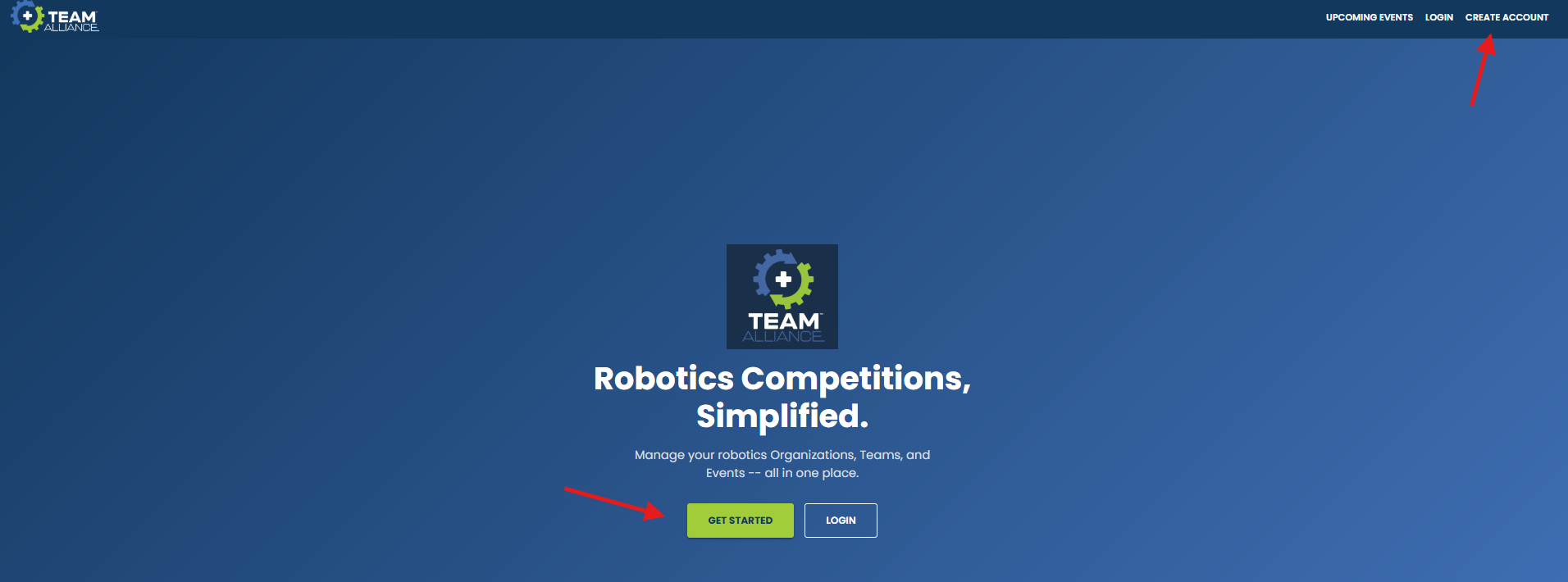
- If this is your first time visiting myTEAMevents.org, you will first need to create your account. Select the GET STARTED button or CREATE ACCOUNT in the top-right corner:
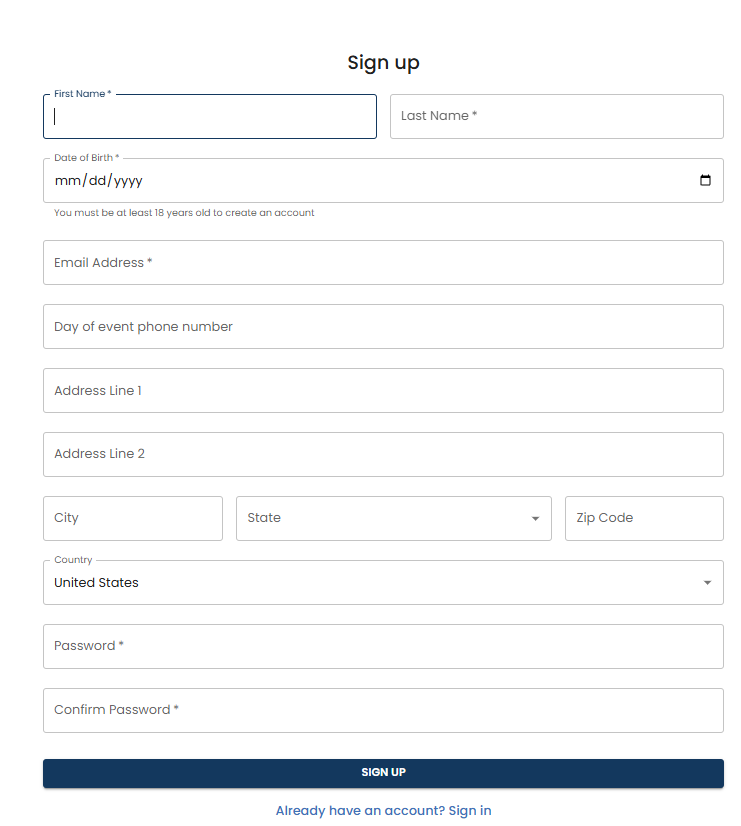
- Complete the registration form fields and select SIGN UP.
- You will be sent an email to verify your email address. If you do not see the email in your Inbox, check your spam / junk folder, or contact TEAM Alliance at support@teamalliance.org.
- After verifying your email, login to myTEAMevents.org using your email and password created during registration.
Season Agreements
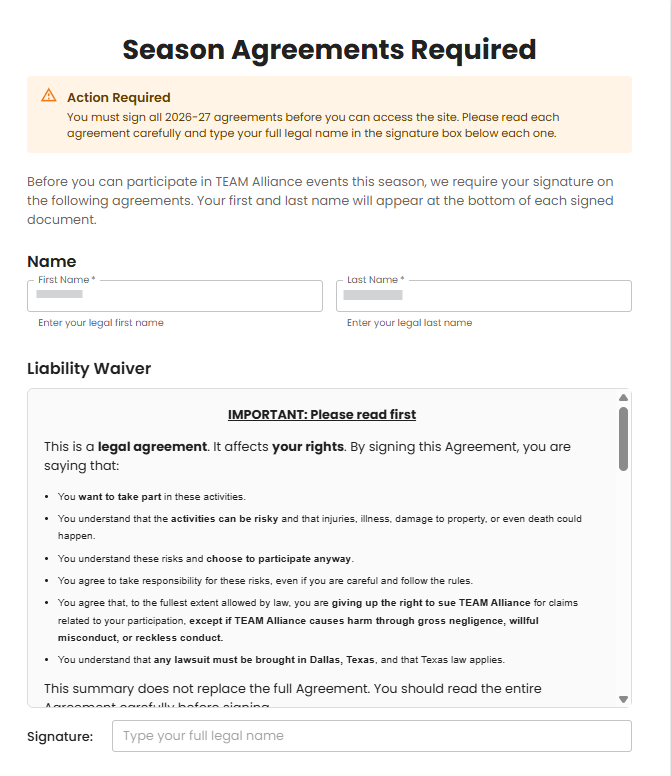
- When you first create your account, you will be prompted to review and sign the season agreements. If you have any questions or concerns about the Season Agreements, please contact TEAM Alliance at support@teamalliance.org.
- Complete the digital signatures on the Season Agreement, check the box to acknowledge the TEAM Alliance privacy policy, and then select I AGREE – CONTINUE TO SITE.
Adding an Organization
An Organization is any school, club, or group that manages one or more teams. First, review this website for TEAM Alliance’s Organization Definition for further information on how Organizations are defined and how Organizations are identified using numbers: Organization Definition
If your organization has never registered teams on myTEAMevents.org, then you will need to add an Organization using the following steps. (If your organization has registered teams previously or if you have another person from your organization that has already added the Organization, then go to the next section to learn more about joining an Organization.)
- Start typing the name of your organization. The system will automatically pull up schools that are in the NCES School Database.
- If you find your organization in the list, select it. This will “claim” the organization and set you as the organization’s administrator. Note: It may take 20-30 seconds for the list to populate once you type in the name.
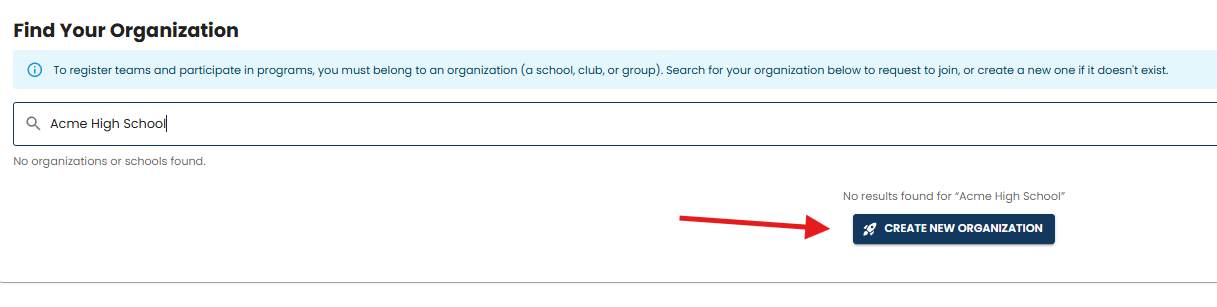
- If the organization is not in the NCES Database, then select the CREATE NEW ORGANIZATION button.
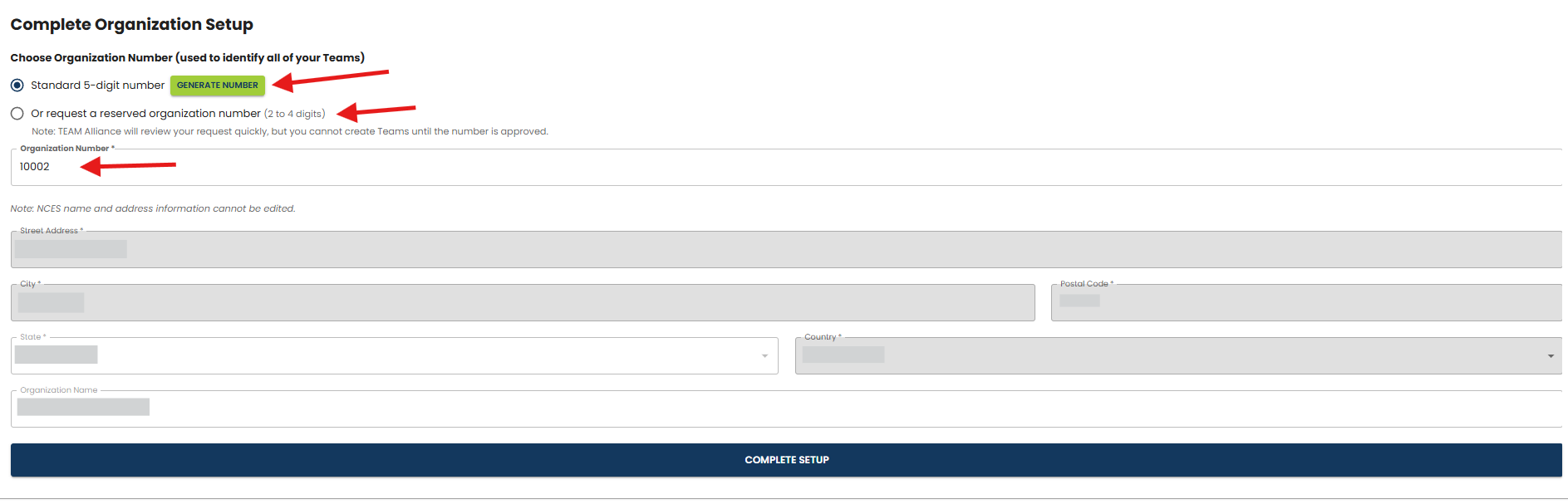
- In the next screen, you will create an Organization Number and verify the Organization’s information. For Organizations that are in the NCES database, the name and address will be pre-populated. For custom organizations, enter the information in the designated fields.
- Organization Number: Each Organization is assigned a single Organization number in myTEAMevents.org, and individual teams within that Organization are identified by adding a letter. There are three options to creating your Organization Number:
- Option 1 – Generate Number: Selecting the Generate Number button will generate the next available five digit number.
- Option 2 – Type in a Custom Number: Enter a custom five digit number in the Organization Number field. If the number has already been claimed, you will receive an error message.
- Option 3 – Request a Reserved Organization Number: We recognize some organizations have used 2 – 4 digit numbers in the past and may want to keep that number. If this is the case, select the radio button next to “Or request a reserved organization number (2 to 4 digits). Two fields will appear. One will ask for the reason for this request and the other field will be the requested number. These requests may take 2-3 business days to process.
NOTE: This Organization Number will be the same each season. All teams (SRM and SRC) associated with that organization will have the same Organization Number.
- After creating the Organization Number and verifying the Organization information, select COMPLETE SETUP.
- You are now ready to register your teams!
Joining an Organization
If an Organization has already been claimed by another user, for example another staff member or a teacher from a previous competition season, then you will need the administrator from that Organization to invite you. If you do not know the administrator for that organization, contact TEAM Alliance (support@teamalliance.org) for assistance.
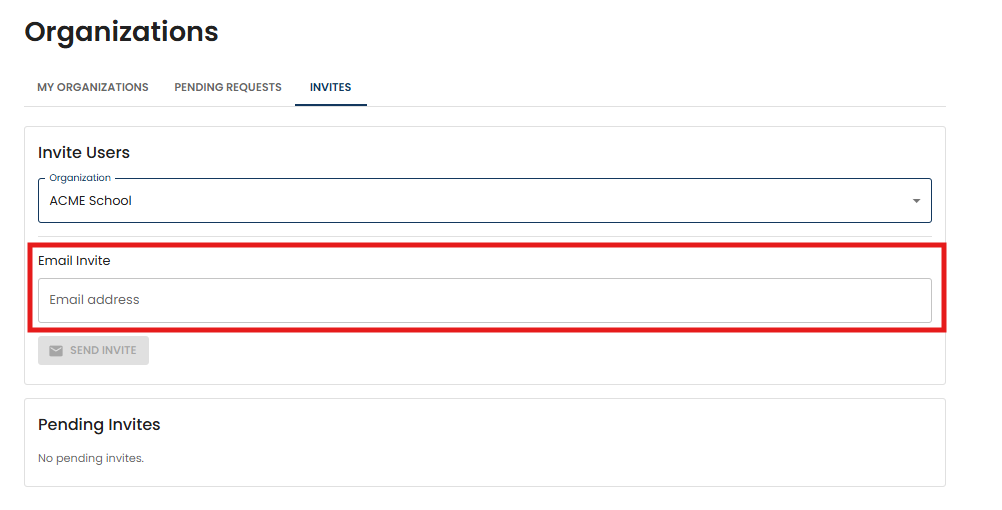
- The Organization administrator will select the ORGANIZATIONS menu, then select INVITE.
- Then they will enter your email address associated with your myTEAMevents.org account and send the invitation to join the organization.
- You will receive an email to notify you that you’ve been invited to the Organization. Follow the instructions in the email to accept your invitation.
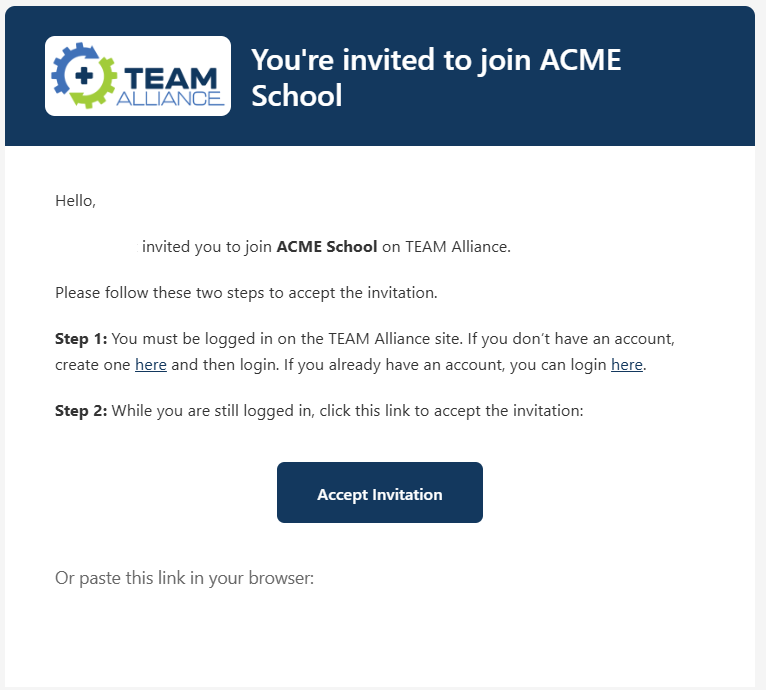
NOTE: You must have created an account before the Organization administrator sends the invitation.
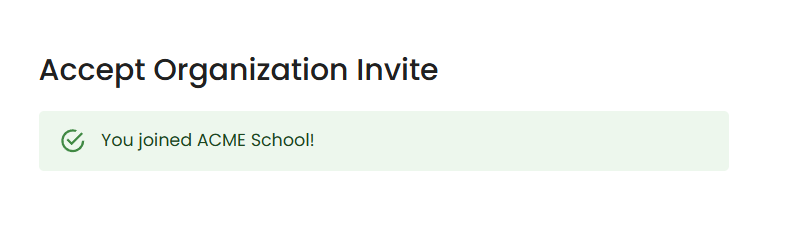
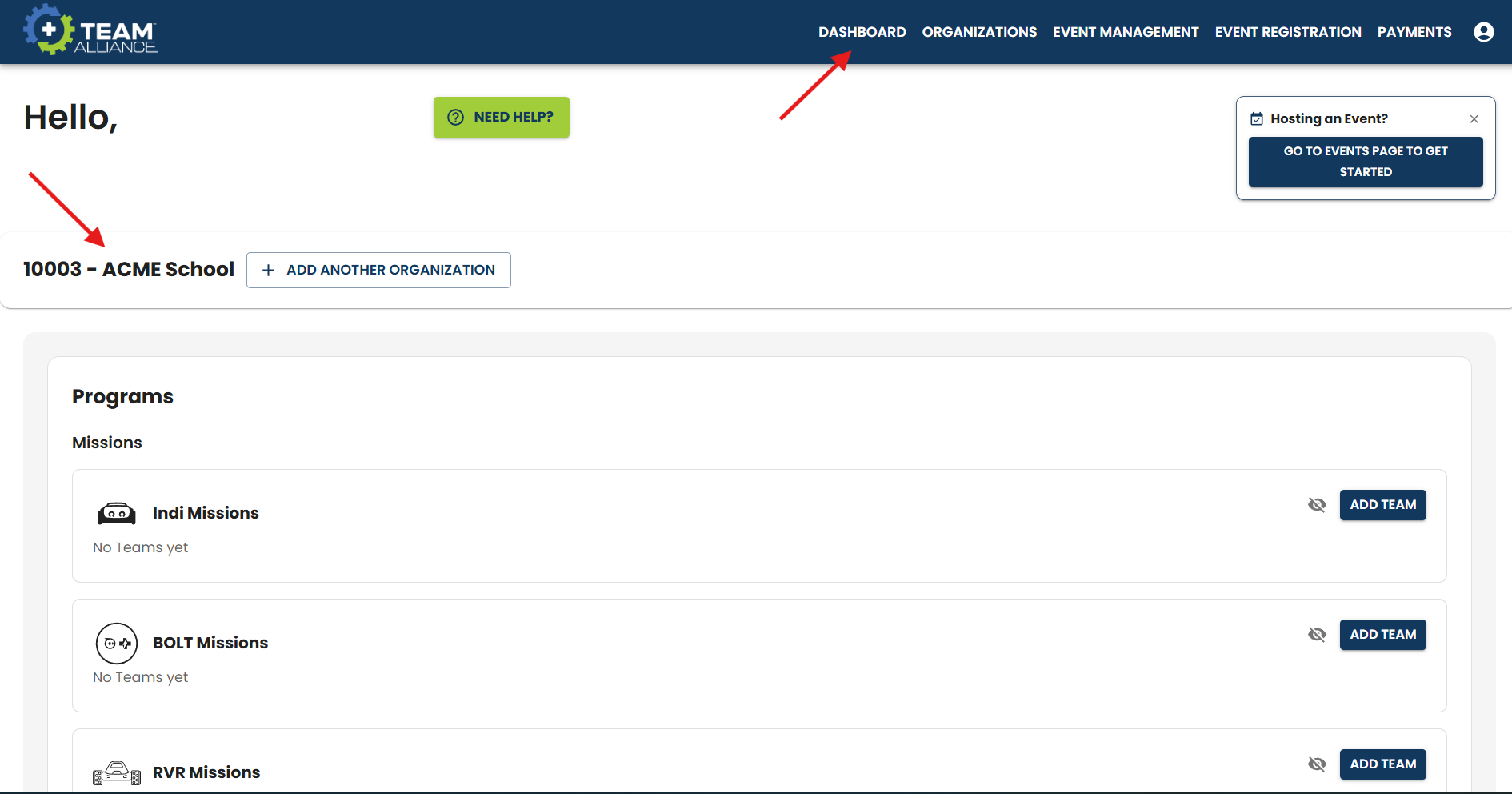
- Once you accept the invitation you will receive a confirmation message and can see the Organization listed in your Dashboard view.