
Register a Team
Only teams that are officially registered on the TEAM Alliance registration website, myTEAMevents.org, are eligible to participate in TEAM Alliance programs. Team registrations include two or more event registrations depending upon the program type. Teams can only register for an event if they have a Paid or PO Processing status. The Team Coordinator can process the team registration fee using the payment methods listed below.
If you have any questions about the team registration process or fees, contact TEAM Alliance at support@teamalliance.org.
It is assumed that you have already created your myTEAMevents.org account and are associated with your Organization. If you have not done this already, see these instructions on how to complete these tasks.
Register a Sphero Robotics Mission (SRM) Team
- Login to myTEAMevents.org and you’ll be directed to your Dashboard. Verify that your Organization is correct for the teams you want to register. If you are associated with more than one Organization, there will be a drop-down option to select the correct Organization.
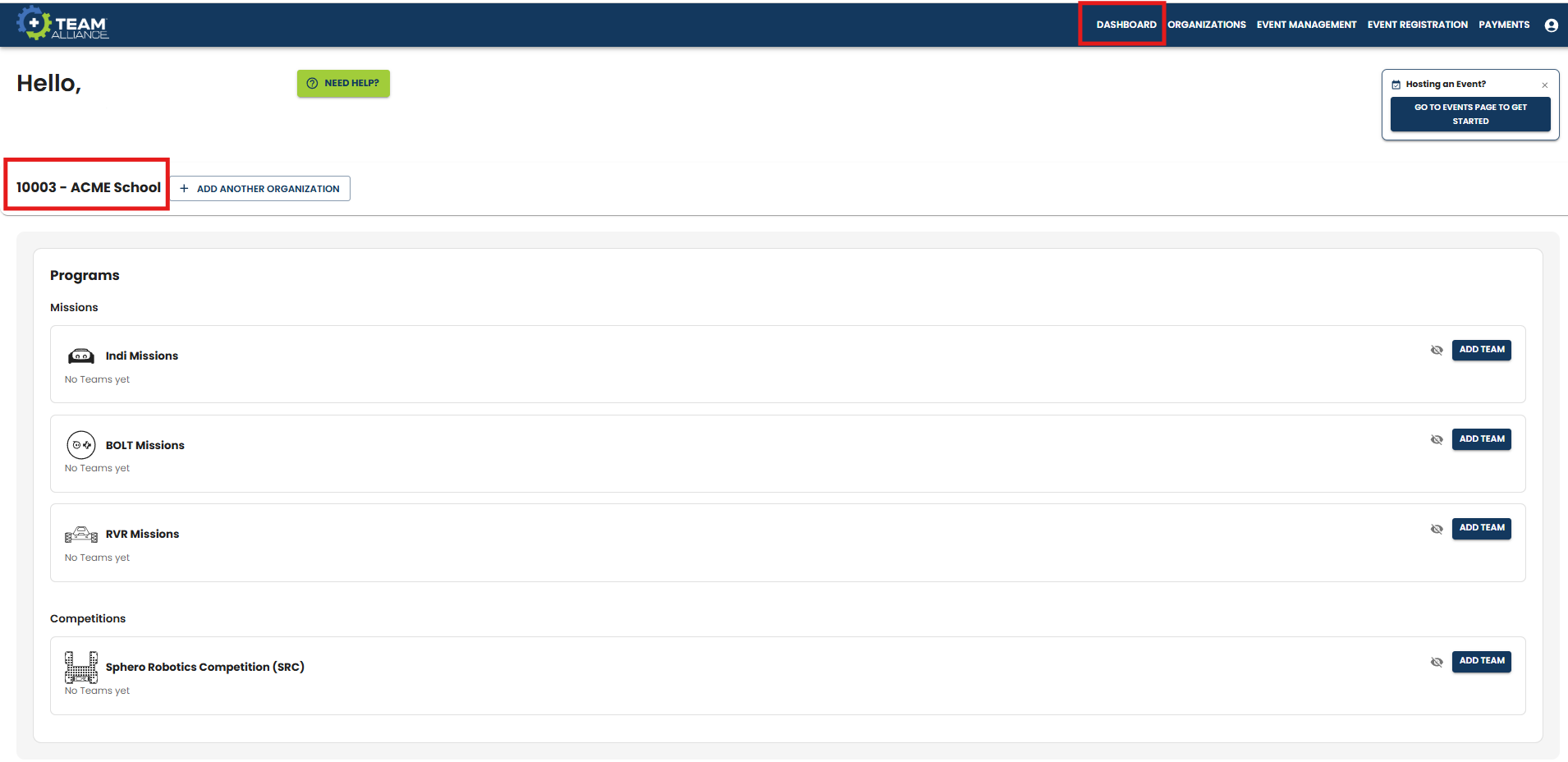
- Select ADD TEAM next to the desired SRM Program type:
- indi Missions
- BOLT Missions (for BOLT and BOLT+)
- RVR Missions
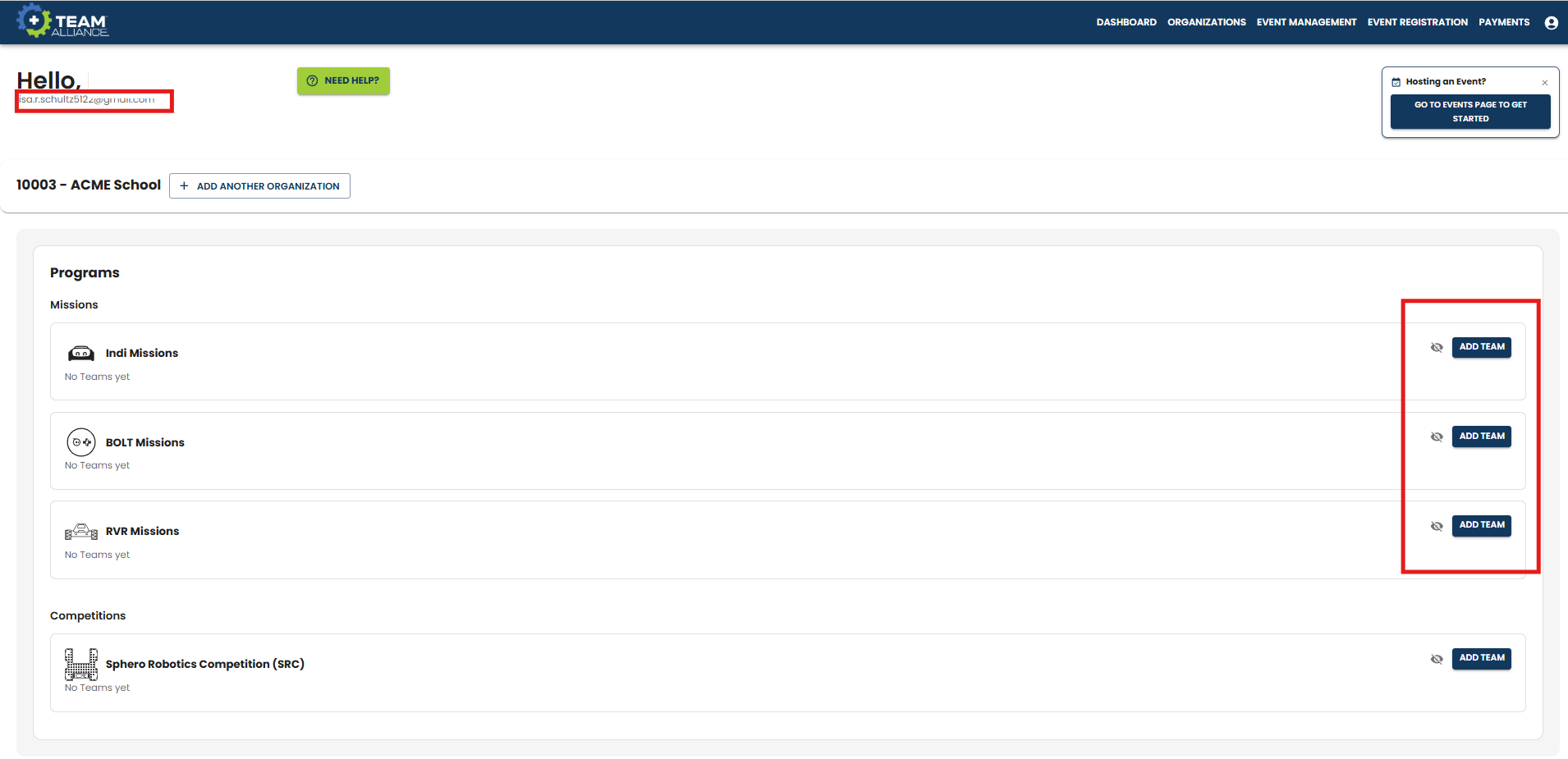
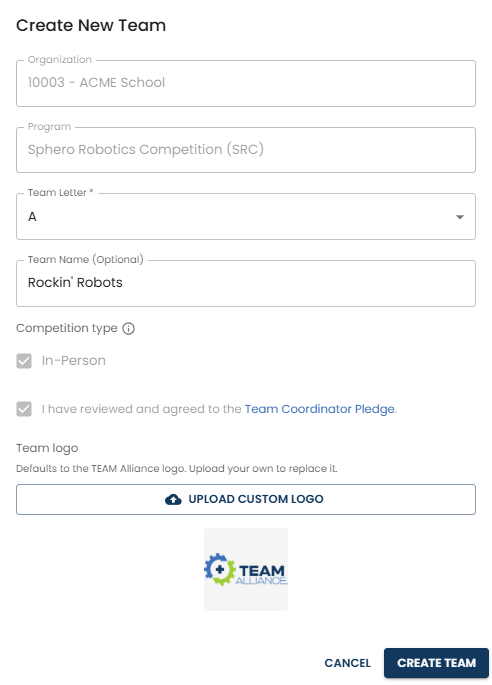
- Enter the team information:
- Team Letter: Select any letter from the drop-down list. This will identify the individual team for your organization for each program type. Example 10003A, 10003B. This cannot be changed for the remainder of the competition season.
- Team Name (Optional): The Team Name will appear in event schedules and other areas of the website. This can be edited later at any time, so you can leave it blank or provide a temporary name if your team hasn’t decided on a Team Name at this time.
- Select the Competition Type:
- In-Person: This includes In-Person and Live Remote Events where Teams, volunteers, and officials are present at the same physical venue to participate in completing Mission Objectives.
- Online Submission: Teams work on their Mission Objectives at home, school, or in their extracurricular club and submit them to be evaluated online by Evaluators within a specified window of time. This format is included in the Online Submission team registration only.
- Review and accept the Team Coordinator Pledge.
- Upload a Custom Logo for the Team (optional). This logo will appear on event display screens at events. It’s best to use a square aspect ratio, if possible. If no logo is uploaded, then there will be a default TEAM Alliance logo used. This logo can be uploaded any time, so if you don’t have one now, you can skip this and add it later.
- Select CREATE TEAM.
IMPORTANT: The In-Person and Online Submission competition types are different team registrations types, and each have separate season registration fees. You can select one or both competition types and the corresponding season registration fees for each type will be added to your PAYMENTS menu once the team has been created. If you select only one of the competition types now, you can always add the other competition type at a later date for the additional season registration fee.
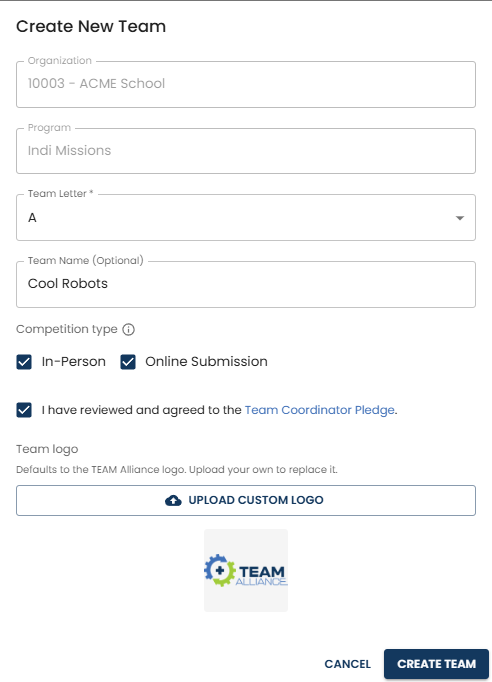
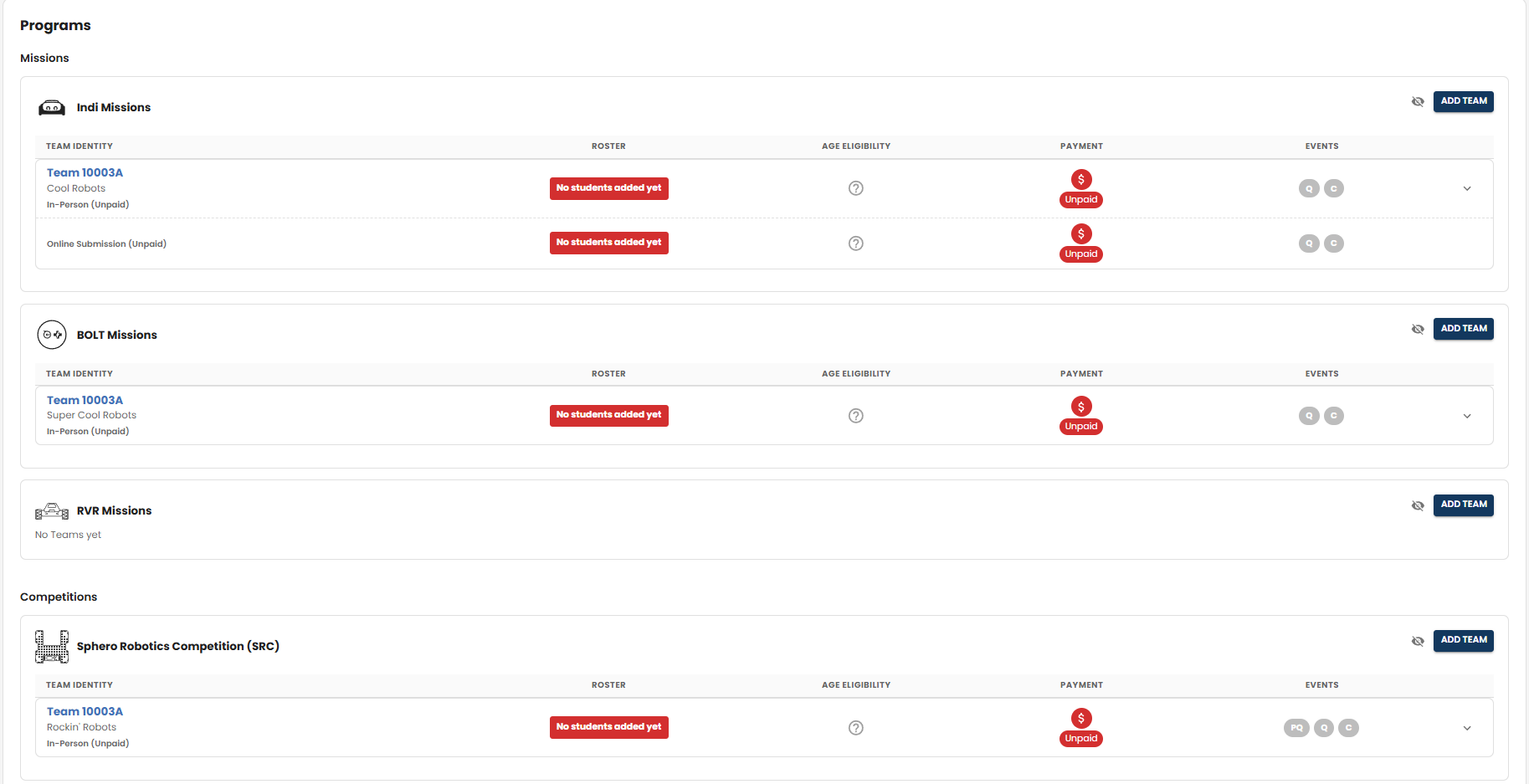
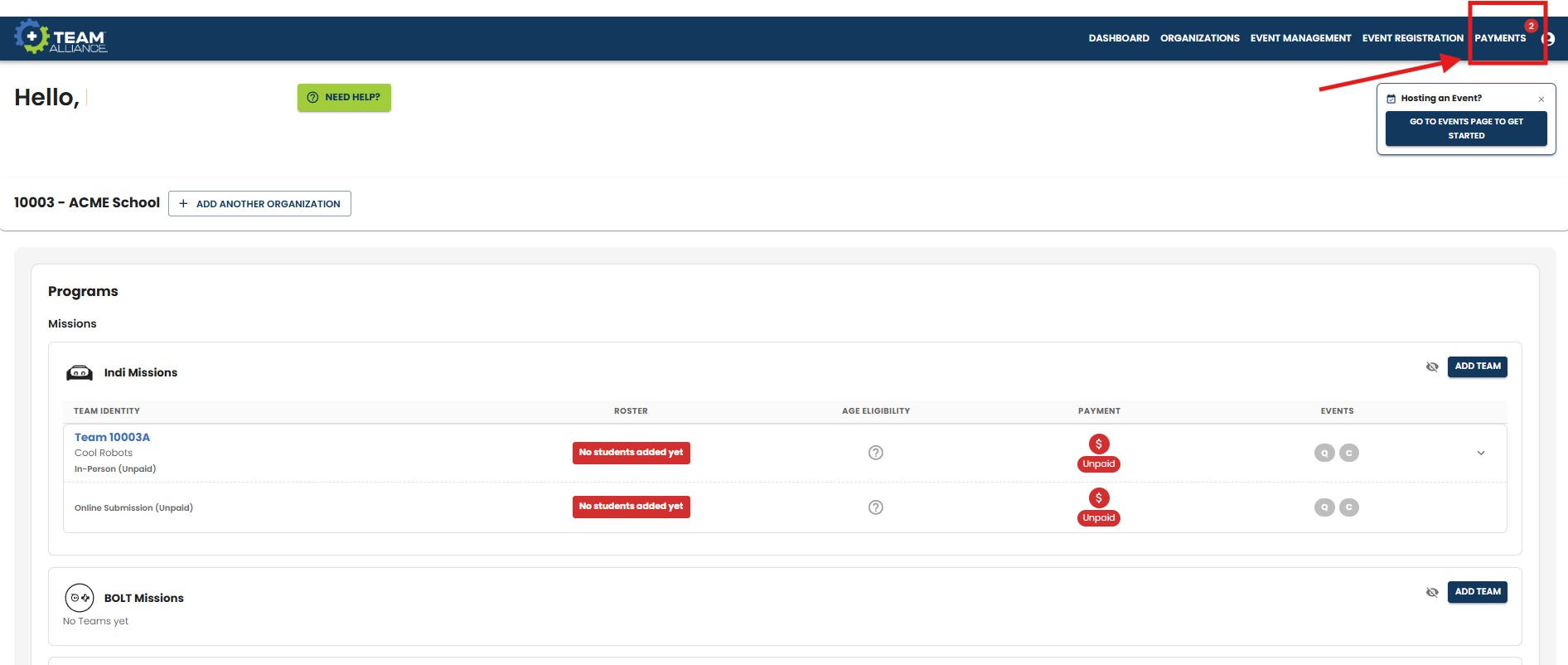
- Once you have created your team, they will display in your Dashboard view under the corresponding program type. In the example below, there is a new indi Mission team, Team 10003A, that will be participating in In-Person events and Online Submissions.
- The team has been created, but it is Unpaid and cannot register for events.
- Notice in the PAYMENTS menu in the header that two season registrations have been added, one for the indi In-Person Season Registration and one for the Online Submission Season Registration.
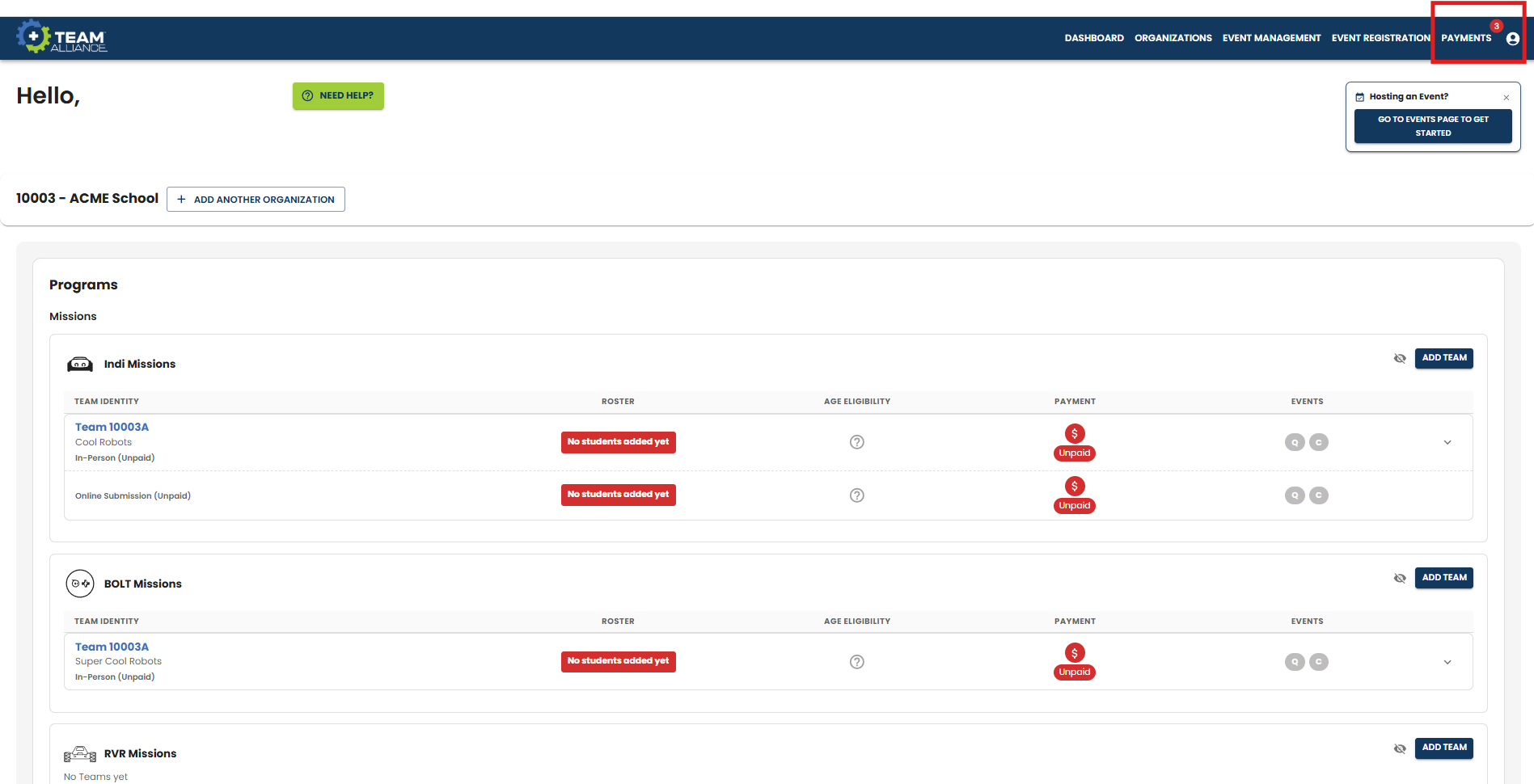
- Repeat Steps 1 – 4 to add additional SRM teams. The example below shows an additional BOLT Mission team that is registered for In-Person events only. There are now three registration fees added to the PAYMENTS menu.
Registering a Sphero Robotics Competition (SRC) Team
The process for registering an SRC team is similar to registering an SRM team with one exception. There is no Online Submission competition type for SRC events, so the competition type defaults to “In-Person”.
Dashboard Information
Once you have created your teams you will notice some important information on your Dashboard.
- Roster: Once you have identified which students will be on each team, they will need to be added to your roster. See Adding Students to a Roster for detailed instructions.
- Payment: Displays the payment status of the team. Only teams with a PO Received or Paid status will be eligible to register for events. See Paying Team Registrations for detailed instructions.
- Events: These are initially grey until the team’s registration has updated to PO Received or Paid. After the team has become eligible to register, these will change colors.
- SRM Teams: Season registrations include a Qualifying Events “Q” and a Championship Event “C”.
- SRC Teams: Season registrations include a Prequalifying Event “PQ”, Qualifying Events “Q” and a Championship Event “C”.