
Registering for an Event
Only teams that are officially registered on the TEAM Alliance registration website, myTEAMevents.org, are eligible to participate in TEAM Alliance programs. Team registrations include two or more event registrations depending upon the program type. Teams can only register for an event if they have a Paid or PO Processing status.
It is assumed that you have already registered and have an Paid or PO Received payment status for your teams. If not, please review these articles on how to Register a Team and Paying Team Registrations.
Event Registration Status
Team Coordinators can review their team’s event registration status from their Dashboard. These are initially grey until the team’s registration has been updated to PO Received or Paid. After the team has become eligible to register, these will change colors.
- SRM Teams: Season registrations include a Qualifying Events “Q” and a Championship Event “C”.

- SRC Teams: Season registrations include a Prequalifying Event “PQ”, Qualifying Events “Q” and a Championship Event “C”.

Event Icon Colors
- Grey: Needs to complete payment or submit a PO before the team can register for an event.
- RED: Needs to register for an event.
- GREEN: Team is registered for the event
Championship Events
Initially, the icon for Championship Events will have this icon, which means the team has paid for their Championship Event for the season, but they have not yet qualified for the Championship event. Once the team qualifies for the Championship Event, the icon will change to have a checkmark, and the Team Coordinator can proceed with registering for the Championship event.
| Not Qualified | Qualified |
 |
 |
Registering for an Event
- Login to myTEAMevents.org.
- Verify that the event icons are red. If they are grey, then that means the team registration is Unpaid, and this needs to be updated to PO Received or Paid before proceeding.
- There are two methods to find events for your teams.
- Option 1: Select the event icon. Select the event icon next to a corresponding team and it will direct you to the Event Registration screen and display all eligible events for that team based on the program type and region.
- Example: Finding events for a SRM Mission team by selecting the “Q” (Qualifying) Event icon.

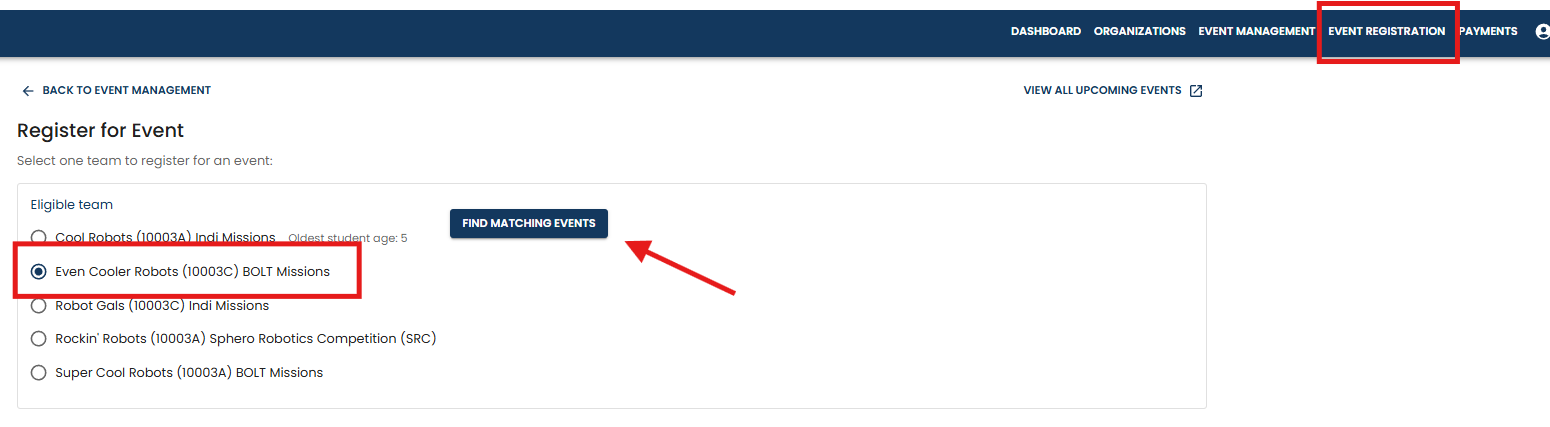
- Option 2: Select EVENT REGISTRATION and the team that you want to register for an event.
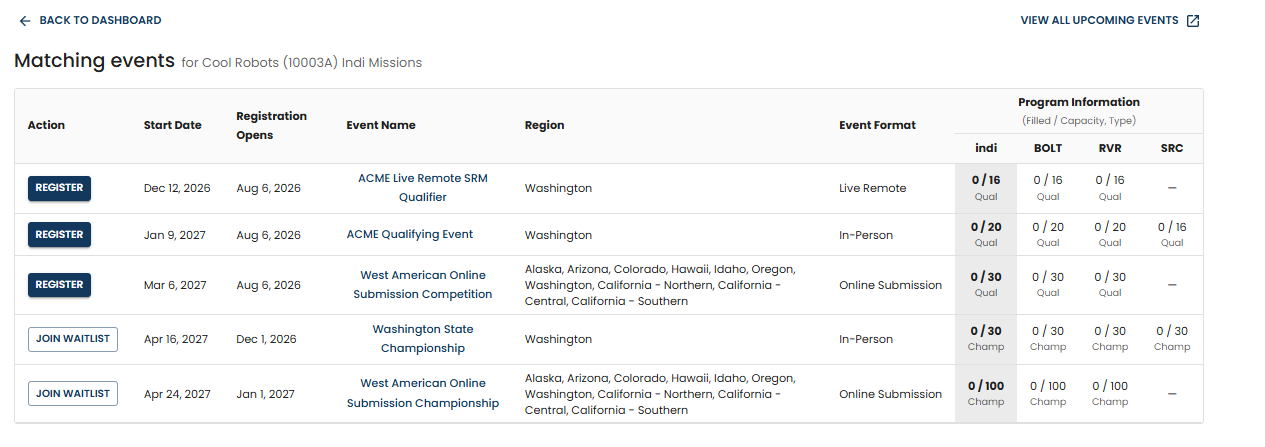
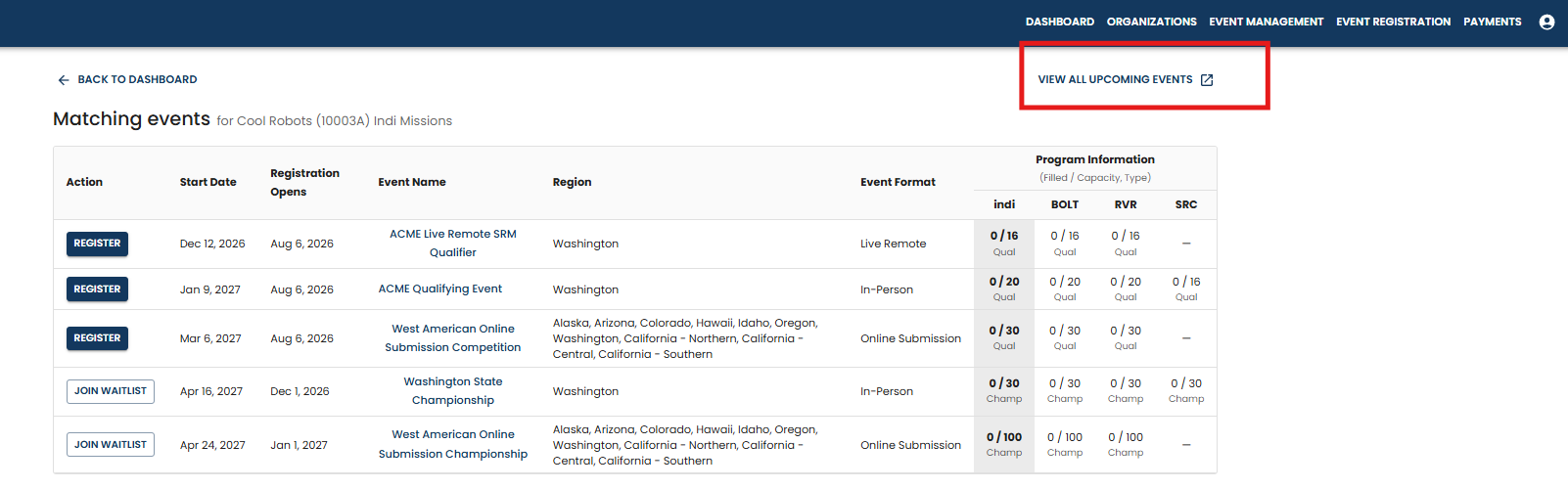
- Notice in the screenshot below, there are three events that have a REGISTER button in the Action column. These are events that have capacity for additional teams and the team registration window is open. If the event is full, the registration window is closed or if it’s an event a team has to qualify for, then the only action allowed is to JOIN WAITLIST.
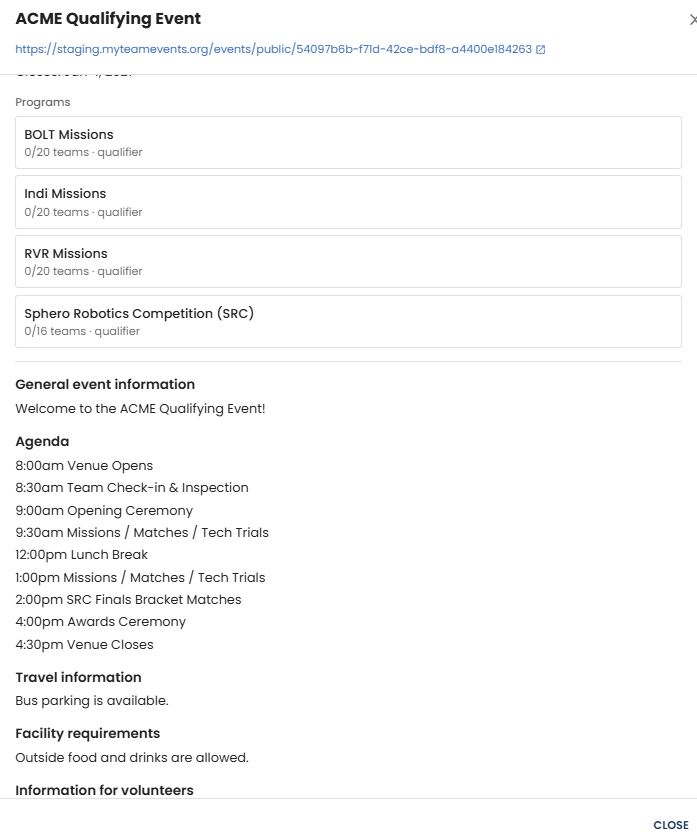
- If you want more information about the event before registering, you can select the Event Name link and it will bring up the detailed information so you can review the venue location, agenda, and other event details.
- Select REGISTER for the desired event.
- If you happen to have more than one eligible team in that program that can attend this event, a pop-up window will appear with the option to register additional teams. Select additional teams, if desired.
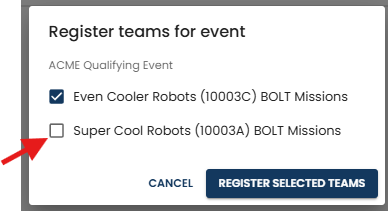
- In your Dashboard, you can now see that the event icon has changed to green, which indicates that this team has registered for their Qualifying Event.

IMPORTANT: Ensure you have added your students to the roster and sent the Waivers to be digitally signed by the parent/guardian BEFORE you attend the competition. See Adding Students to a Roster for more information.
Changing Event Registrations
- If an Event Host cancels an event, your team is going to be removed from the event. The team will be able to register for an alternative event of the same type on the TEAM Alliance registration website.
- Teams that are currently registered for an upcoming event but no longer can attend must contact TEAM Alliance at support@teamalliance.org immediately.
- If you want to swap the team with another team from your organization, TEAM Alliance can perform that action on your behalf
- If you cancel your team’s attendance to an event with less than two weeks notice from the day of the event, your team is not able to register for an alternative event of the same type. Exceptions to this are handled by TEAM Alliance on a case-by-case basis.
- If you notify the Event Host with two weeks or more notice from the day of the event, your team will be removed from the event. The team will be able to register for an alternative event of the same type on the TEAM Alliance registration website.
Viewing Registered Event for Your Team
Once you have registered for an event, you can access the event page directly from the Team’s page.
- In the DASHBOARD select a desired Team Number.

- This will bring you to the Team page. On the right side is a list of Upcoming Events the team is registered for in the current season. Select the event name to be directed to the detailed event page in case you want to view the agenda, address, etc.
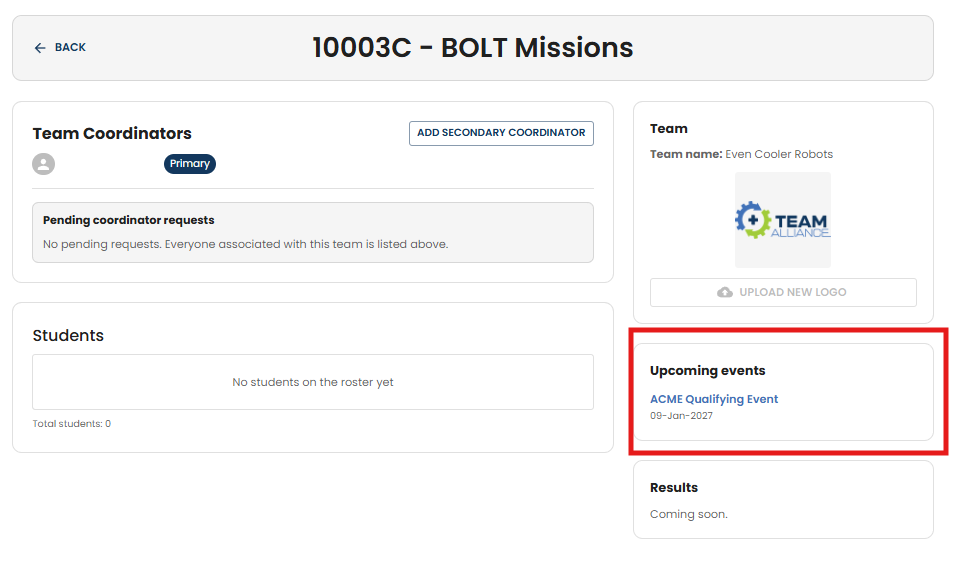
Viewing All Events
When you are reviewing open events for your teams, you only see the events that your teams are eligible to participate in. If you would like to see all events in every region, do the following:
If you are logged into myTEAMevents.org:
- In the EVENT REGISTRATION menu, select VIEW ALL UPCOMING EVENTS.
If you are not logged into myTEAMevents.org (also nice for sharing with parents, sponsors, volunteers, etc.):
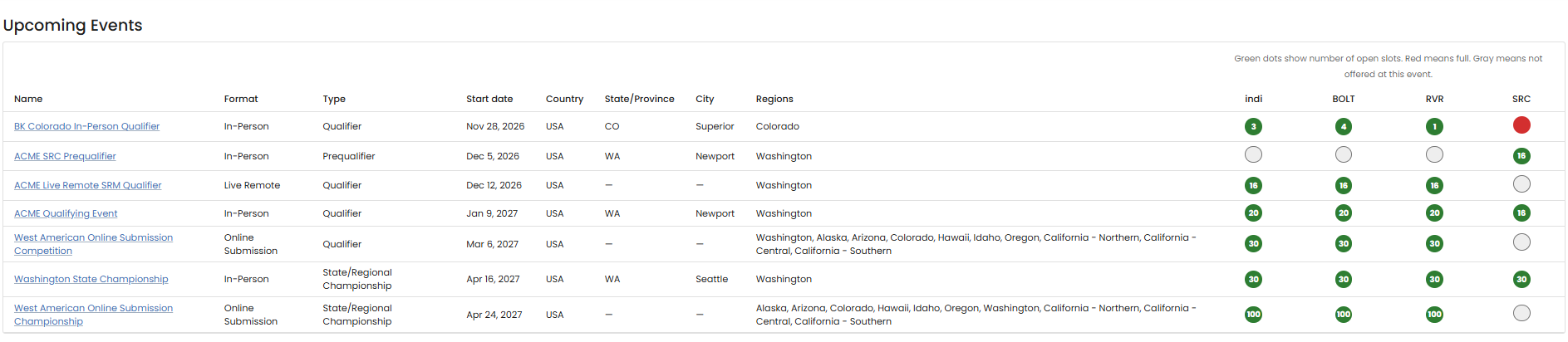
- On myTEAMevents.org you will see UPCOMING EVENTS in the header menu. (Note – this disappears when you login). Select UPCOMING EVENTS and this will show a list view of all published events for all programs and regions.
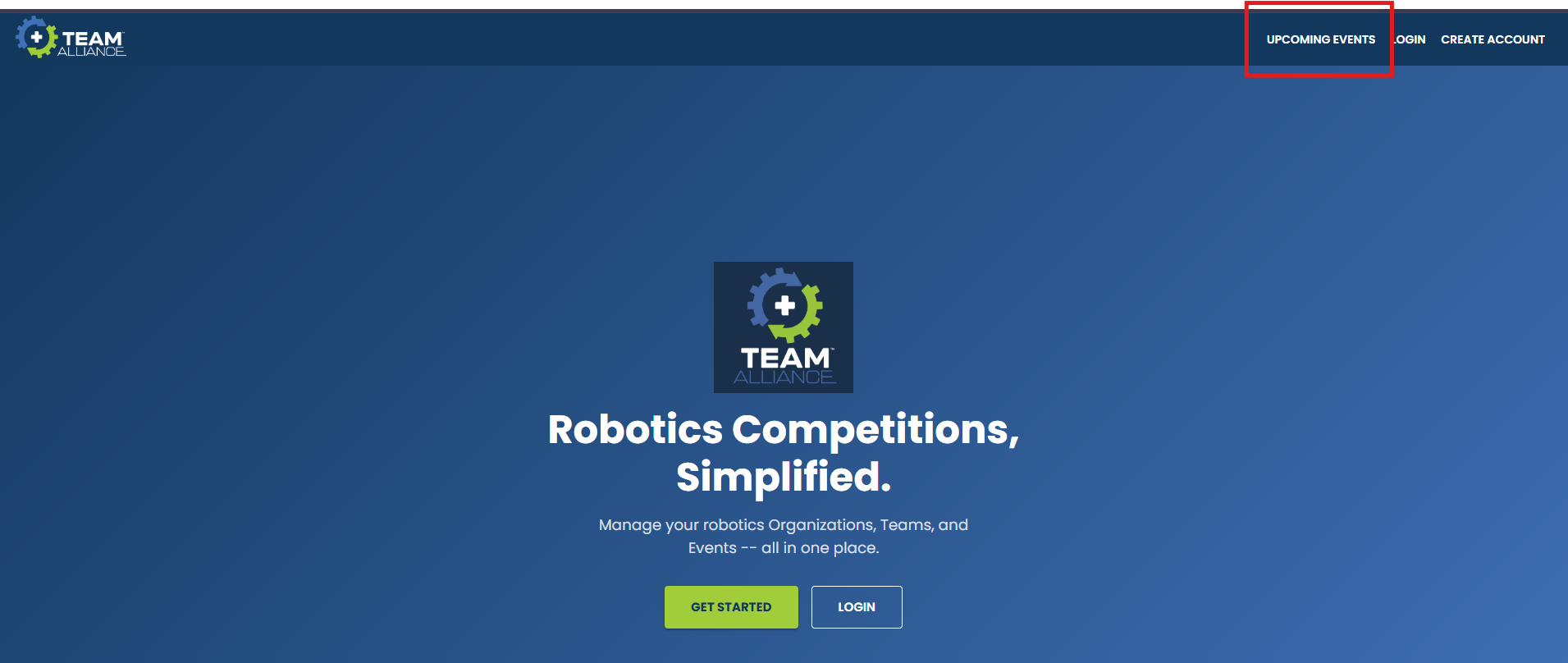
Example (Note: these are fake events for training purposes only):