

Once you have identified which students will be on each team, they will need to be added to your roster. The purpose of the roster is to ensure that each student has a submitted TEAM Alliance Participant Release Waiver completed. This is mandatory for students to participate in TEAM Alliance programs, so it is important to do this before attending an event.
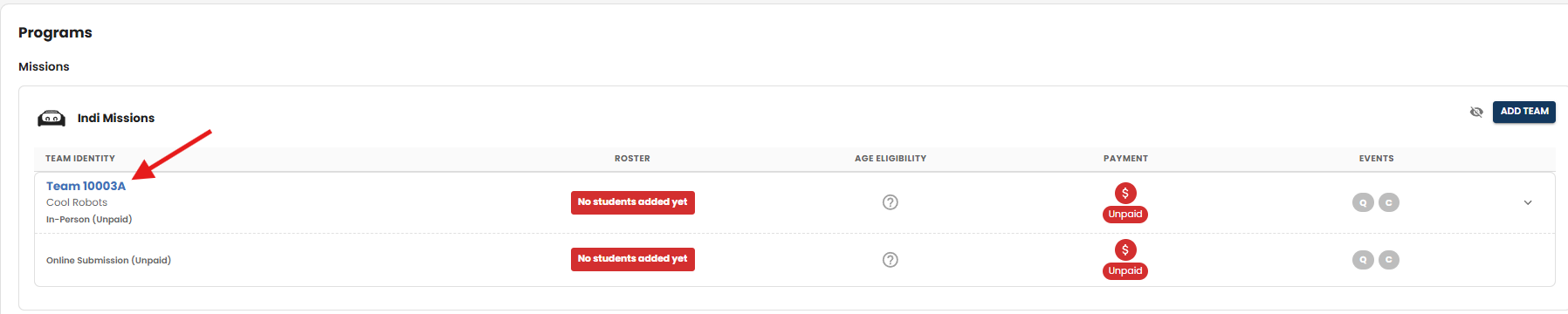
- Select the Team that the student will belong to during the competition season by clicking on the Team Number in the DASHBOARD.
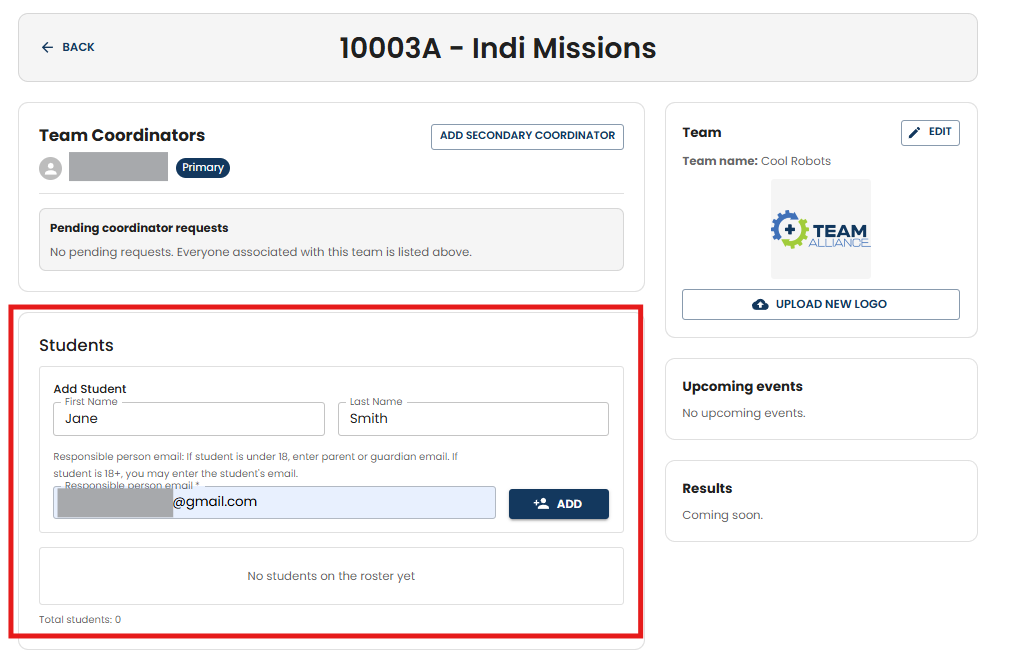
- This opens the Team’s page. Go to the Students section:
- Add the Student’s First and Last Name. If privacy is a concern, then it is allowed to only enter the Student’s First Name and last name initial (ex. Jane S.).
- Enter an email address for the Student’s parent or guardian. This will be where the instructions on how to complete the Student’s Participant Release Waiver digitally will be sent and completed digitally by the parent or guardian.
- Select ADD.
- IMPORTANT: This step does not send the email to the parent or guardian. See the next step for that process.
- The added Student will now appear in the Student area. Notice that it shows the “Waiver Status” as “Not Sent”.
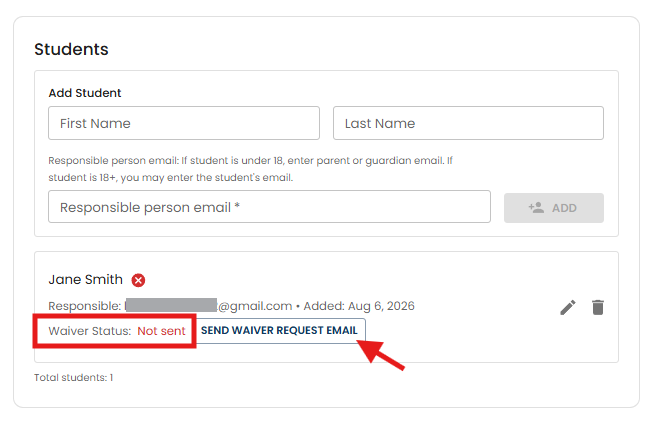
- Select SEND WAIVER REQUEST EMAIL and this will send an email to the parent/guardian with instructions on how to complete the mandatory TEAM Alliance Participant Waiver digitally. There are no paper or hard copy forms to complete, so this can be easily done online by the parent or guardian.
- The email will have a subject line “Waiver request for (Student’s Name”).
- The email will have a “Complete Waiver” button for the parent or guardian to select to complete the Waiver online.
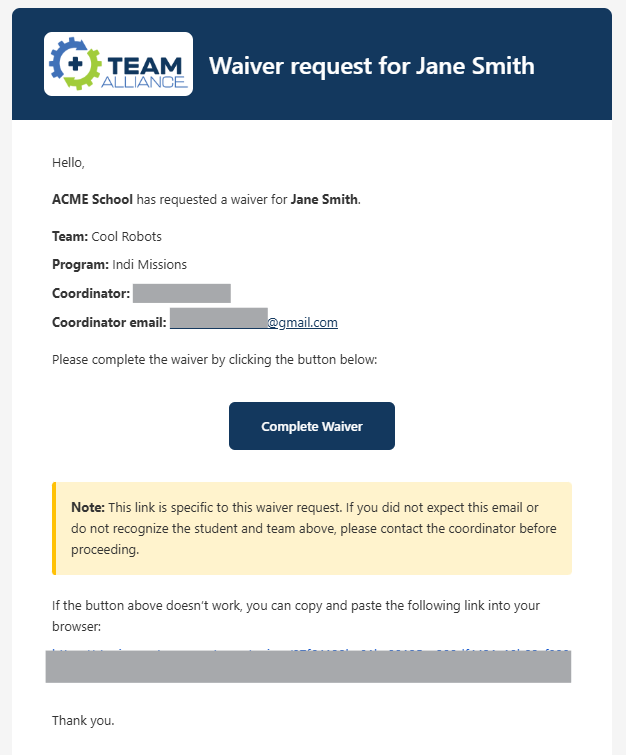
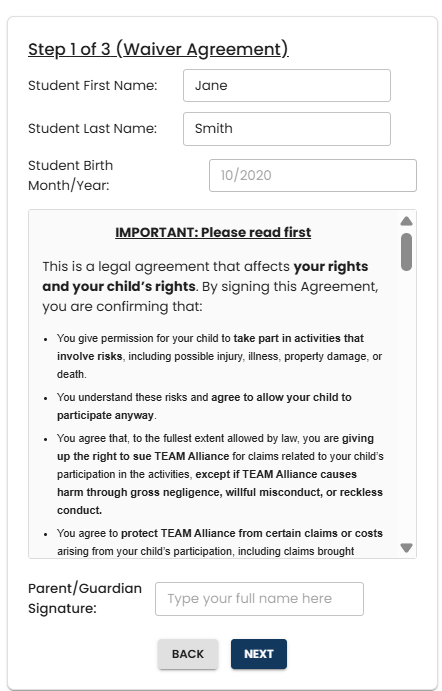
- The Waiver verifies and/or collects the following information:
- Student’s name
- Student’s Date of Birth (this is collected to verify they are eligible for each of the program types)
- Review of the TEAM Alliance Waiver Agreements (Liability and Media releases.
- Parent / Guardian Digital Signature
- Student Demographics (optional)
- Team Coordinators will need to monitor the status of the Waivers after they are sent to the parent / guardian.
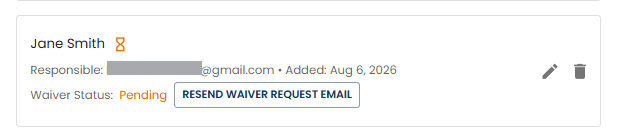
- Wavier Status: Pending – The Waiver has not been completed. If needed, you can resend the Waiver Request email to the parent or guardian.
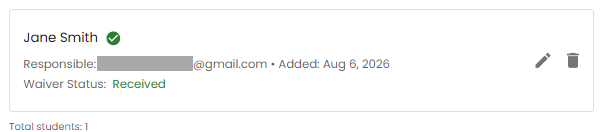
- Wavier Status: Received – The Waiver has been successfully completed by the parent or guardian, and the Student is now eligible to compete.
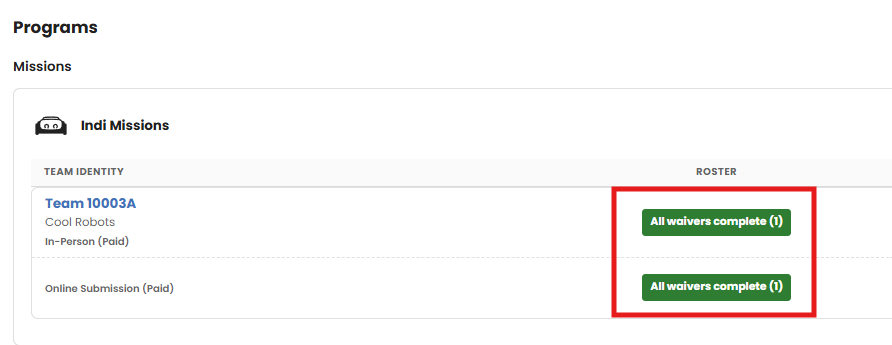
- If the SRM team is registered for both In-Person and Online Submissions, then the waiver will automatically be applied for both event types for that Student.
- Once the Waiver is received, the Team Coordinator can also review if there are any Students that do not meet the Age Eligibility for that program type. TEAM Alliance will need to be contacted prior to the competition day if any students do not meet the Age Eligibility requirements to discuss any special circumstances.
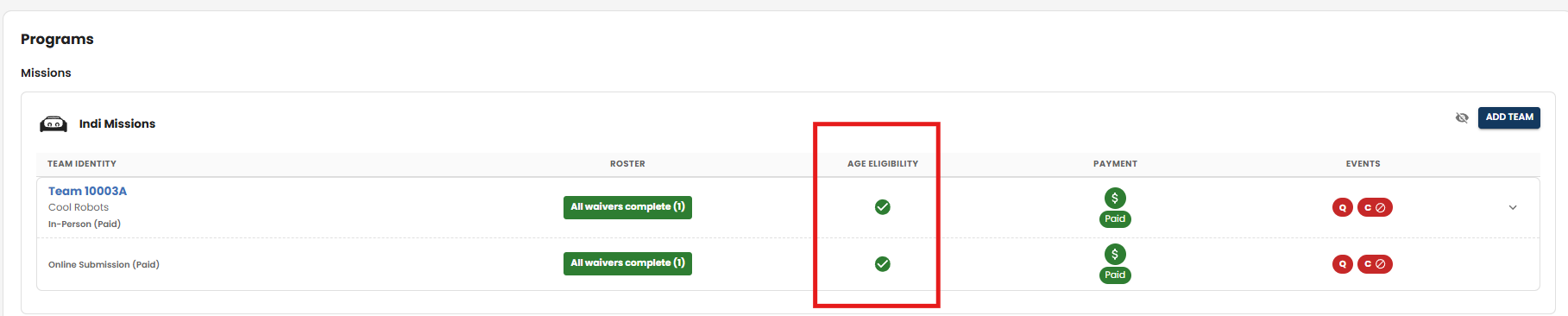
- Repeat for the remaining Students on each team.
IMPORTANT: During Team Check-in at events, the Waiver status will be reviewed for each student on the team. If a student does not have a “Received” Waiver status, they will not be able to participate. Waiver statuses are updated as soon as the Waiver is completed, so if it’s not done the morning of the event, the Parent or Guardian can still complete the Waiver and the status will be updated immediately.