

Paying Team Registrations
Only teams that are officially registered on the TEAM Alliance registration website, myTEAMevents.org, are eligible to participate in TEAM Alliance programs. Team registrations include two or more event registrations depending upon the program type. Teams can only register for an event if they have a Paid or PO Processing status.
It is assumed that you have already registered your teams. If not, please review this article on how to Register a Team.
Please carefully review the TEAM Alliance Payment Terms & Refund Policy.
- Login to myTEAMevents.org
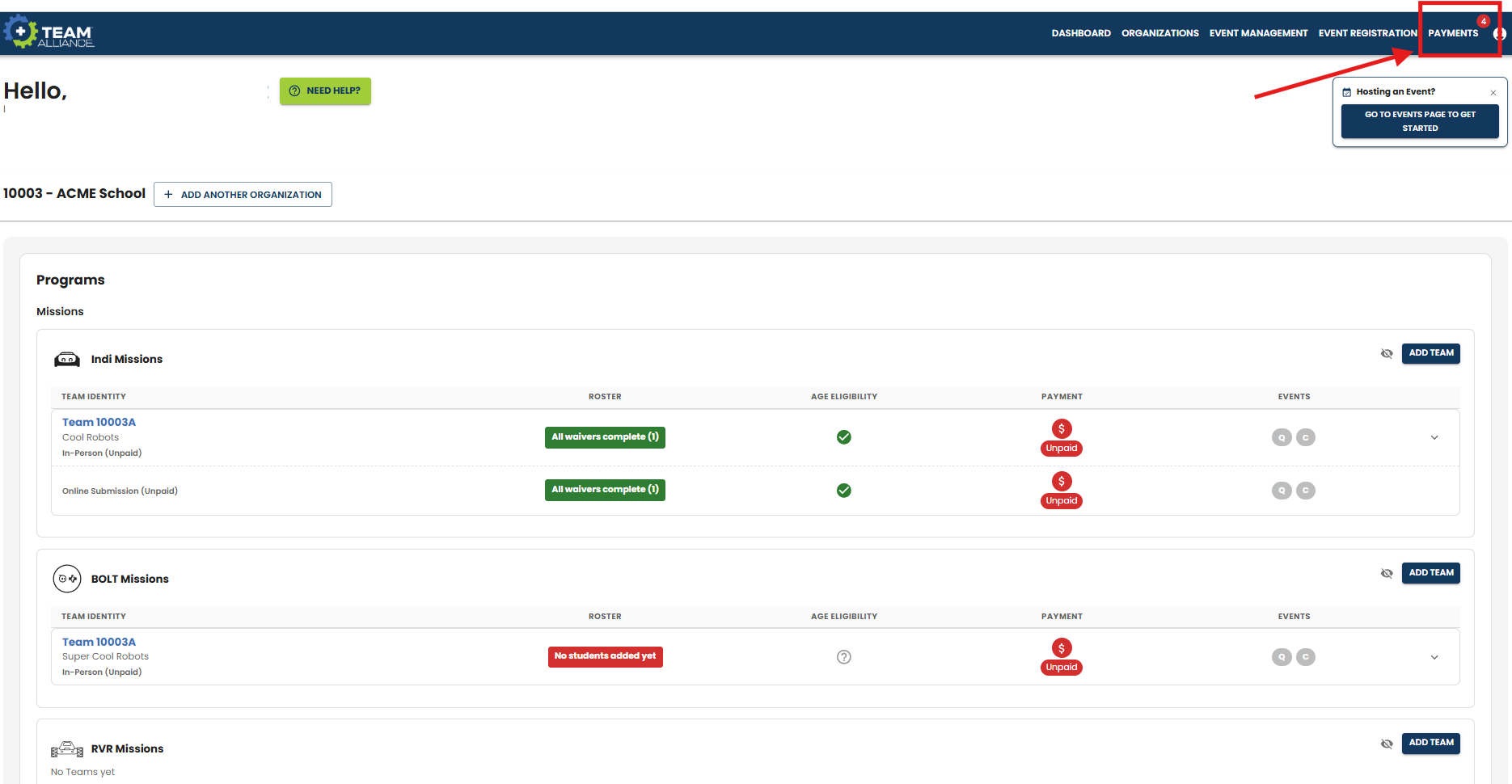
- Go to the PAYMENTS menu (upper right-hand corner).
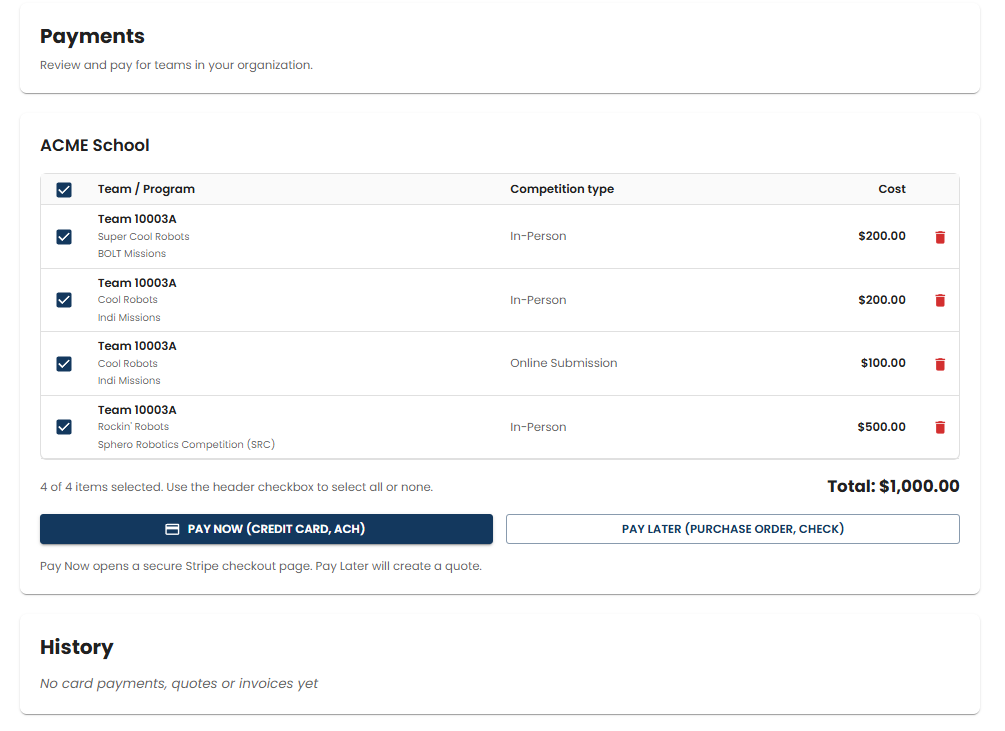
- In the Payment menu, you will see an itemized list of unpaid season registrations.
- By default, they are all checked to pay, but you can uncheck individual season registrations if you only want to pay for select team registrations in a transaction.
- You can delete a team registration using the red trash icon if that team will not be participating this season.
Payment Methods
TEAM Alliance accepts Credit Card, ACH, Purchase Orders, and Checks for team registration payments. Below are the detailed instructions for each payment type.
- Credit Card: TEAM Alliance accepts Visa, MasterCard, American Express and Discover. Credit Card Payments can be processed through the payment screen in myTEAMevents.org by selecting the PAY NOW (CREDIT CARD, ACH)..
- Credit Card payments made through myTEAMevents.org are applied instantaneously to change the team registration status from Unpaid to Paid. This is the recommended method of payment if time is critical for the team to register for an upcoming event.
- Purchase Order (PO):
- In myTEAMevents.org, first select PAY LATER (PURCHASE ORDER, CHECK).
- Enter the email that the Quote will be sent to. This can be to the Team Coordinator or a financial representative (does not need a myTEAMevents.org account).
- The designated email will be sent the Quote. Review the Quote and approve if it is correct. If the Quote is not correct or needs to be amended, the Team Coordinator can return to myTEAMevents.org in the Payments screen to delete the Quote. Those items will be returned to the user’s cart.
- Submit the approved and signed PO to TEAM Alliance by email (ar@teamalliance.org) or FAX (903-226-8667).
- If your organization requires an Invoice to create a PO, contact ar@teamalliance.org. Otherwise the Invoice will be sent after the signed PO has been received by TEAM Alliance.
- Once a PO has been received and verified by TEAM Alliance, the team registration will change from “Unpaid” to “PO Received” in myTEAMevents.org which will enable the team to register for events. This process may take 3-5 business days to complete and be updated in your myTEAMevents.org account.
- TEAM Alliance will generate an Invoice and send it to the organization for payment.
- PO Checks Payments: (USD funds only drawn on a U.S. bank)
- Please make sure that all checks remitted state your Invoice number, organization Name, Program, and Team Number(s) to enable swift & proper crediting
- Payable to: TEAM Alliance
- Send to:
TEAM Alliance
PO Box 8096
Greenville, TX 75404
- PO Credit Card or ACH Payments:
- Email ar@teamalliance.org for instructions
- Include your Quote or Invoice number and Organization name
- All POs must be paid net 30 days from when Invoice is sent by TEAM Alliance to the organization for payment.
- Once the PO payment is received and funds have been deposited by TEAM Alliance, the payment status will update from PO Received to Paid.
All POs must include the following:
- Identification Information:
- Unique Purchase Order #
- TEAM Alliance name and address (TEAM Alliance, PO Box 8096 Greenville, TX 75404)
- Organization name, address, and contact information
- Quote or Invoice number created in myTEAMevents.org
- Billing Information:
- Instructions for invoicing
- Billing address
- Billing contact information (name & email)
- Item Description:
- Itemized program name & team number(s) with registration unit prices and total amounts
- Authorized Signatures:
- Digital/physical signature is required for a PO to be accepted
- ACH: ACH payments can be processed through the payment screen in myTEAMevents.org by selecting the PAY NOW (CREDIT CARD, ACH).
- In the payments screen, select “Pay Now (Credit Card / ACH)”, then select Bank in the payment options. Enter the bank name in the field and then enter the account information to complete the transaction.
- ACH payments made through myTEAMevents.org are applied instantaneously to change the team registration status from Unpaid to Paid.
- If your bank is not listed, email ar@teamalliance.org for ACH payment alternative instructions.
- Check: (USD funds only drawn on a U.S. bank).
- Team Registrations can be paid directly with a check, but take note that this process may take 2-3 weeks to process the payment and change the team registration status from “Unpaid” to “Paid”.
- In myTEAMevents.org, select PAY LATER (PURCHASE ORDER, CHECK).
- Enter the email that the Quote will be sent to. This can be to the Team Coordinator or a financial representative (does not need a myTEAMevents.org account).
- The designated email will be sent the Quote. Review the Quote and approve if it is correct. If the Quote is not correct or needs to be amended, the Team Coordinator can return to myTEAMevents.org in the Payments screen to delete the Quote. Those items will be returned to the user’s cart.
- Please make sure that all checks remitted state your Quote/Invoice number, organization name, program, and team number(s) to enable swift & proper crediting
- Mail check payment to TEAM Alliance:
- Payable to: TEAM Alliance
- Send to:
TEAM Alliance
PO Box 8096
Greenville, TX 75404
- Once the check is received and funds have been deposited by TEAM Alliance, the payment status will update from Unpaid to Paid, allowing the team(s) to register for events.
Payment History
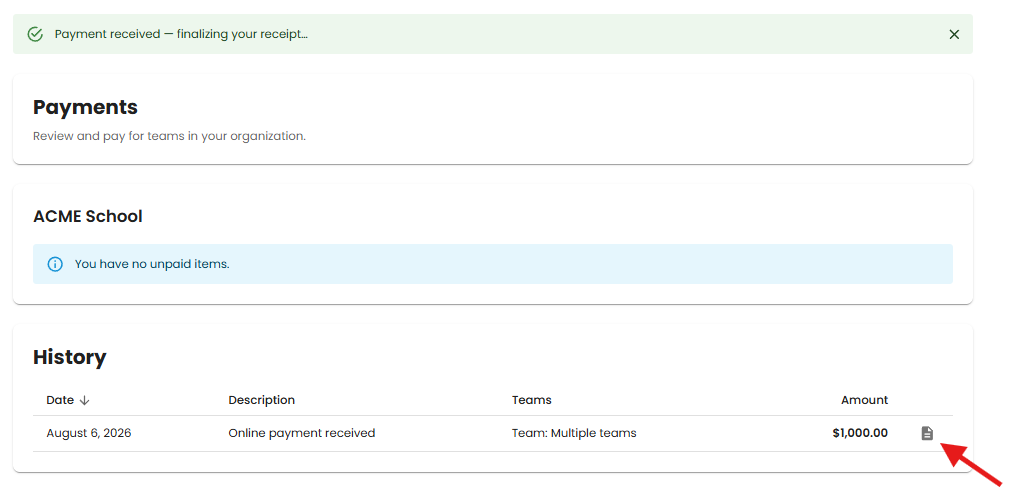
Once a payment has been received or a Quote has been generated, those transactions will be listed in the History section under Payments.
To view and download a receipt for the transaction, select the icon next to the amount.
Updated Team Payment Status
The payment status will update on your Dashboard. When the Payment status is set to PO Received or Paid, the Events icons will change to red to reflect those events types are now activated.
See How to Register for an Event for detailed instructions on how to register for an event.
